
Artspire: AI Video Generator
NXL AI SolutionsArt & Design
3.234.00 Reviews
- Version
- 3.9.0
- Installs
- 1.00M
- Age Rating
- Everyone
Screenshots
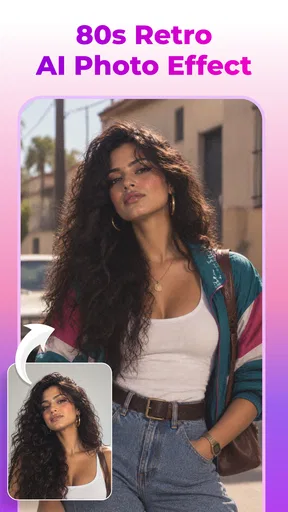
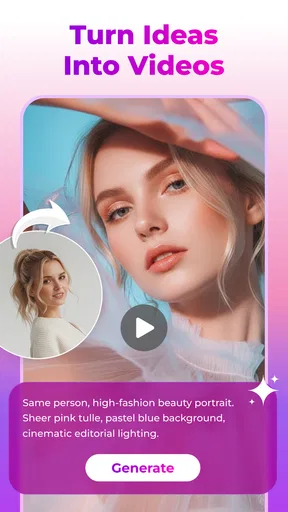
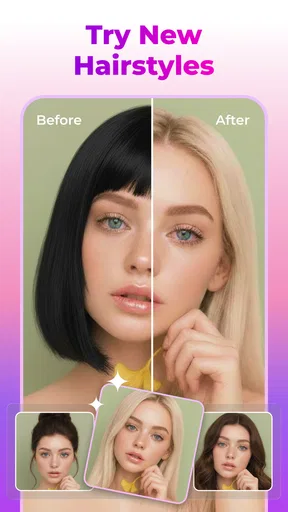
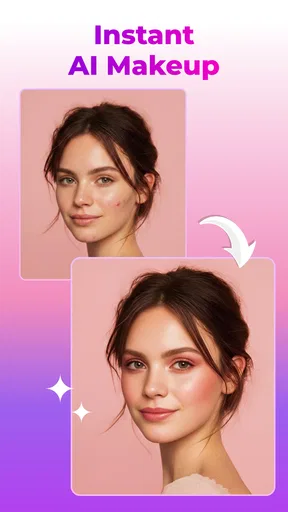
Our Review of Artspire: AI Video Generator
 Analysis by Appyee
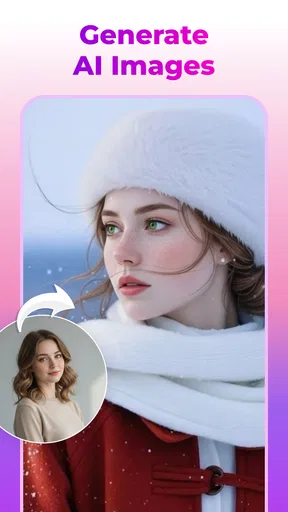
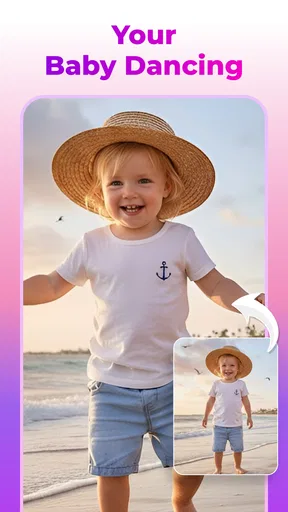
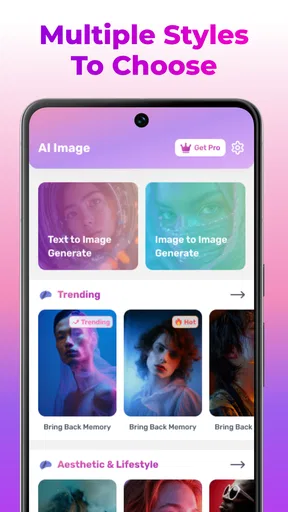
Artspire: AI Video Generator caught my attention because it sits between a simple art app and a lightweight video tool. Instead of asking me to draw every frame or learn a full editor, it uses a photo as the starting point for AI artwork and moving visual creations. That makes it appealing when I want something expressive quickly, especially for a social post, a personal image, or a small creative experiment.
After spending time with it, I see the app as a convenient first step rather than a complete replacement for a traditional design suite. Its strongest quality is the low barrier to trying an idea. Its weaker side is that AI results can require patience, and the experience may feel less predictable than an editor where I control every detail. For people who value speed and visual experimentation, that trade-off can be worthwhile.
How Artspire feels to use from the first screen
The app comes from NXL AI Solutions and belongs to the art and design category. It is free to install, carries an Everyone age rating, and supports devices running Android 8.0 or later. Those basics make it approachable for a broad audience, including someone who has never opened a professional creative application before.
The most important accessibility question here is not whether the app has a long list of specialist tools. It is whether a person can understand what to do next without already knowing AI terminology. In that respect, the photo-first concept is helpful. I can begin with something familiar—a picture from my device—rather than an empty canvas that demands a plan.
For a new user, I would suggest starting with one clear image instead of a busy group photo. A single subject gives the generator a better visual anchor and makes it easier to judge whether the transformation is successful. This is also a useful approach for anyone who finds complex creative interfaces tiring: reduce the number of decisions before starting, then change only one creative direction at a time.
The app’s current version is 3.5.0, and its store presence shows more than a million installs. Its average rating is 3.2, which tells me to keep expectations measured rather than assuming every result will be polished immediately. I read that rating as a reason to explore the workflow carefully and decide whether its particular style of AI creation suits me.
Readability and navigation for different users
Artspire’s central idea is easy to explain: use a photo to create AI art or a dynamic video. That clarity matters for people who are uncomfortable with software that presents dozens of unexplained controls. A focused workflow can reduce cognitive load, particularly when I am creating something casually on a phone rather than sitting down for a long editing session.
There is also a practical benefit for users who communicate visually. Seeing a personal image become the basis for an artwork can make the purpose of each step more obvious than a text-heavy tutorial. I do not need to imagine the final concept from nothing; I can compare the source image with the generated result and decide whether it feels right.
Still, AI applications often involve a learning curve that is different from ordinary editing. The challenge is not only finding buttons. It is learning how to prepare an image and how to judge an output that may look attractive while changing important details. I recommend keeping the original photo untouched and treating each generated result as a separate experiment. That habit prevents frustration when one version does not preserve the subject as expected.
For readers who prefer large text, high contrast, screen magnification, or a very specific reading order, the experience may depend heavily on the phone’s own settings and the app’s interface behavior. I would test it with those settings enabled before committing to a long creative project. A short trial is enough to reveal whether labels remain understandable and whether controls are comfortable to reach.
Motor and sensory considerations during creation
AI generation can be easier than detailed drawing for someone who finds precise finger movements difficult. I do not have to trace outlines, paint tiny areas, or repeatedly adjust a narrow slider to create a visual change. Starting from a photograph also removes much of the hand-control pressure associated with sketching on a small screen.
That does not make the process effortless for every user. Choosing images, reviewing variations, and making repeated attempts can still involve many taps. If a person has limited reach or fatigue, the most practical workflow is to prepare a small set of suitable photos first, then work in short sessions. I would avoid trying to perfect an entire sequence in one sitting.
Moving images and strong visual changes can be uncomfortable for some people. Anyone sensitive to animation should approach the video side gradually, beginning with a simple still-image transformation and checking each result before viewing it repeatedly. Lowering the phone’s brightness or using system-level motion preferences may help, but those adjustments cannot guarantee that every generated visual will feel comfortable.
Sound is another consideration when sharing or reviewing a result in public. I would use headphones when appropriate and keep the phone muted if I am working in a quiet place. More importantly, I would not assume that a visually successful AI video communicates well without additional context. For viewers who cannot rely on the visuals, a caption, description, or alternative still image may be needed when I share the finished work elsewhere.
One useful technique is to separate creation from evaluation. I can generate a visual first, then pause and inspect it at a comfortable pace rather than immediately replaying it several times. This helps with sensory comfort and also improves judgment: after a break, odd facial details, distorted hands, or distracting movement are easier to notice.
Situational access in everyday use
The app makes the most sense in short, informal situations. Imagine I am visiting family and want to turn a favorite portrait into a playful visual for a birthday message. I can choose the photo, explore an artistic direction, and decide whether the result feels personal enough to share. I would not need to build a timeline from scratch or learn a desktop editor before making something presentable.
It could also help a small creator prepare a visual starting point for a post. I might use it to test whether a photograph works better as a dreamy illustration, a dramatic graphic, or a moving image before investing time in a larger project. The important distinction is that I would use the output as a concept or social asset, not automatically as a finished campaign image.
For educators, families, and casual hobbyists, the photo-to-art approach offers an accessible way to discuss style and transformation. A learner can compare the source and result, talk about what changed, and decide which details matter. That kind of activity is more inviting than asking a beginner to operate a professional video editor immediately.
People with limited internet access, older devices, or little spare time should be more cautious. AI creation is not the same as editing a local photo with a basic filter, so the workflow may be less suitable when I need instant, predictable results. If I am preparing something for a deadline, I would keep a conventional image or video editor available as a fallback.
The app is free to download, but in-app purchases range from $4.99 to $79.99 per item. That makes it especially important to understand the free experience before building a routine around it. I would not begin a large batch of personal projects until I knew which parts of the workflow were comfortably available without spending money and whether the paid options genuinely improved my results.
Where it differs from familiar alternatives
Compared with a conventional photo editor, Artspire is less about exact correction and more about transformation. A normal editor is usually the better choice when I need precise cropping, reliable color adjustments, controlled retouching, or a specific layout. I can predict what a slider will do. With AI generation, the outcome can be more imaginative, but it may also alter features I wanted to preserve.
Compared with a full video editor, the advantage is simplicity. I would choose Artspire when the main goal is to make a photo feel alive or turn it into an artistic visual without assembling clips, transitions, text layers, and audio manually. I would choose the traditional editor when timing, captions, branding, or frame-by-frame control matters more than experimentation.
Compared with a drawing application, it is a better fit for people who have an image in mind but do not want to draw it themselves. That convenience has a creative trade-off: the app can suggest a direction, but it does not give me the same ownership over every line and texture. Artists who want deliberate manual control may find the process too indirect.
My most effective workflow is to use the app early, not late. I can generate a few visual ideas from one photo, select the strongest direction, and then finish the chosen concept in a more controlled tool if necessary. This avoids asking an AI generator to solve every production problem while still benefiting from its ability to create a quick visual starting point.
Practical habits that improve the experience
First, I choose images with a clear subject and enough separation from the background. This is not a guarantee of a perfect result, but it gives the transformation a cleaner starting point than a dark, crowded, or heavily cropped picture. I also keep a copy of the original so I can compare changes honestly instead of relying on memory.
Second, I test one creative idea at a time. If I change the source image, style direction, and intended use all at once, I cannot tell what improved the result. A slower sequence of small tests is less exciting, but it makes the app easier to understand and reduces wasted attempts.
Third, I inspect the result for meaning as well as appearance. AI art can look impressive at a glance while quietly changing a person’s expression, clothing, hands, or recognizable surroundings. For a personal greeting, those changes may be harmless. For a family memory, school project, or image representing a real event, they may be unacceptable.
Fourth, I plan for the viewer, not just the creator. If I make a moving visual for someone who prefers still images, I would also prepare a static version or explain what the image is meant to show. This is one of the most important inclusive habits because a visually engaging result is not automatically usable by everyone.
Finally, I treat purchases as a deliberate decision rather than part of the creative momentum. The available purchase range is wide, so I would pause before selecting anything expensive and consider whether the project is personal experimentation or something I truly need to complete. A free trial of the workflow can reveal far more than a store description.
Remaining barriers and who should skip it
The biggest barrier is unpredictability. Someone who needs an exact likeness, consistent characters, or repeatable branding may spend more time correcting AI results than they would using a conventional tool. The app is better suited to expressive images where variation is welcome than to work that depends on strict visual accuracy.
Another barrier is the gap between a compelling preview and a usable final asset. A result may need checking for awkward details, unsuitable movement, or poor fit with the message I want to send. Users who expect a single tap to produce publication-ready video should lower that expectation.
Cost can become a barrier as well. Although installation is free, the in-app purchase range means that frequent use may lead to decisions about spending. I would skip the app if I need a completely predictable, permanently free production workflow, or if I am uncomfortable evaluating paid options while experimenting.
I would also skip it for sensitive projects where I cannot accept an AI transformation changing the meaning of an image. A traditional editor is safer for precise documentation, formal materials, and situations where the source photograph must remain faithfully represented. Artspire is most enjoyable when creative interpretation is the point.
People who find animation uncomfortable should begin with the still-art side and stop if the visual movement causes strain. Likewise, anyone relying on a particular accessibility setup should test navigation on their own device before planning a long session. The app may be easy for one person and tiring for another, especially when repeated review is required.
My inclusive verdict
Artspire: AI Video Generator is a friendly entry point into AI-assisted art and dynamic photo creation. I like it most when I want to explore an idea quickly, make a personal image feel different, or give a beginner a less intimidating route into visual creativity. Its photo-based starting point can reduce the pressure of drawing and editing from scratch.
At the same time, I would not present it as a universal creative solution. The 3.2 average from around 1.8 thousand ratings reflects a mixed reception, and my own view is similarly balanced: the concept is inviting, but the results need judgment and the workflow may not suit people who require precision. The app’s one million-plus installs show broad interest, not a guarantee that it will fit every device, ability, or creative goal.
For a casual user, I recommend starting with one meaningful photo, working in short sessions, checking the result carefully, and keeping a conventional editor nearby. For a professional designer, accessibility-focused creator, or anyone working under strict visual requirements, I would test it as an idea generator rather than depend on it as the only tool.
My final advice is simple: choose Artspire when you want creative possibility more than exact control. Used with that expectation, it can make visual experimentation approachable while leaving room for more precise tools when the project demands them.
Verdict
Strengths of Artspire: AI Video Generator
- Creates engaging videos from simple text prompts.
- Offers creative styles for social media content.
- Useful for users without video-editing experience.
- Can speed up brainstorming and content production.
- Convenient for experimenting with AI-generated visuals.
Limitations of Artspire: AI Video Generator
- Results may vary significantly between prompts.
- Some features may require a paid subscription.
- Generated videos can contain visual inconsistencies.
- Export quality and options may be limited on free plans.
- Processing times can increase for complex requests.
Other Releases by NXL AI Solutions
View All
Linguza: AI English Tutor
Education3.9

Framly - AI Photo Video Maker
Art & Design3.3
Similar Picks in This Category
View All
Canva: AI Photo & Video Editor
Canva4.8

PENUP – Drawing-sharing SNS
Samsung Electronics Co., Ltd.4.5

Crafto
Kutumb App4.6

Sketchbook
Sketchbook4.1

ibis Paint X
ibis inc.4.5

Adobe Express: AI Photo, Video
Adobe4.6
Frequently Asked Questions
What is Artspire: AI Video Generator and what can it do?
Artspire: AI Video Generator is an AI-powered creative app designed to turn written prompts, images, or ideas into short videos. During testing, its main appeal was the ability to experiment with visual styles, animated scenes, and social-media-ready content without traditional editing skills. It is best suited to quick creative projects, concept videos, promotional clips, and visual experiments rather than advanced, frame-by-frame professional production.
Is Artspire: AI Video Generator free to use?
Artspire may allow users to try selected features or create a limited number of videos without paying, but access to higher-quality generations, additional styles, faster processing, or increased usage can depend on a subscription or in-app purchases. Before downloading, check the current App Store or Google Play listing carefully, including trial conditions, renewal terms, and credit limits, because AI generation policies and pricing can change over time.
Does Artspire require an internet connection?
Yes, an internet connection is generally required because the demanding video-generation process is handled through online AI servers rather than entirely on the phone. A stable Wi-Fi or mobile-data connection helps prompts upload correctly and allows finished videos to download without interruption. Generation time may vary depending on server demand, video complexity, account limits, and the quality or duration selected.
Can beginners use Artspire to create videos without editing experience?
Artspire is aimed at making AI video creation accessible to beginners. You can usually start with a text description, select a visual direction, and let the app produce a result without learning a complex timeline editor. However, the quality still depends on how clearly you describe the scene. Expect to refine prompts and regenerate clips, since the first result may not always match your exact idea.
Are videos created with Artspire suitable for commercial or social-media use?
Artspire can be useful for social posts, presentations, promotional concepts, and other short-form projects, but you should review the app’s current license and terms before using generated content commercially. AI-created videos may include restrictions related to subscriptions, stock elements, music, trademarks, or recognizable people. Also check whether exports contain watermarks, what resolution is available, and whether attribution is required.
